Use Your Phone as a Microphone
Use Your Phone as a Microphone
Section titled “Use Your Phone as a Microphone”The computer audio-device steps below apply to the current Windows release line. See platform compatibility for other platform combinations.
Confirm audio is reaching the computer
Section titled “Confirm audio is reaching the computer”After connecting:
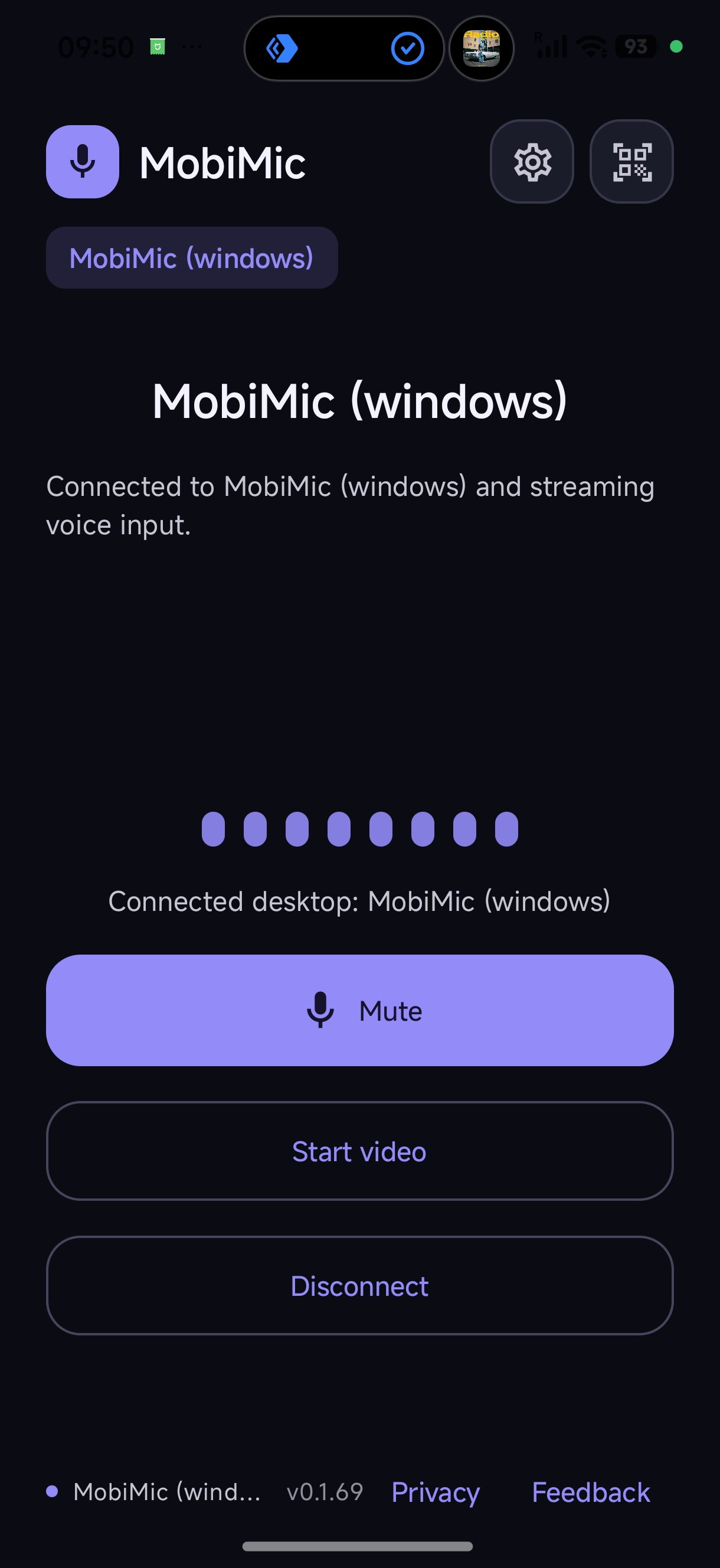
- The phone shows Connected or Listening.
- The phone’s audio meter changes when you speak.
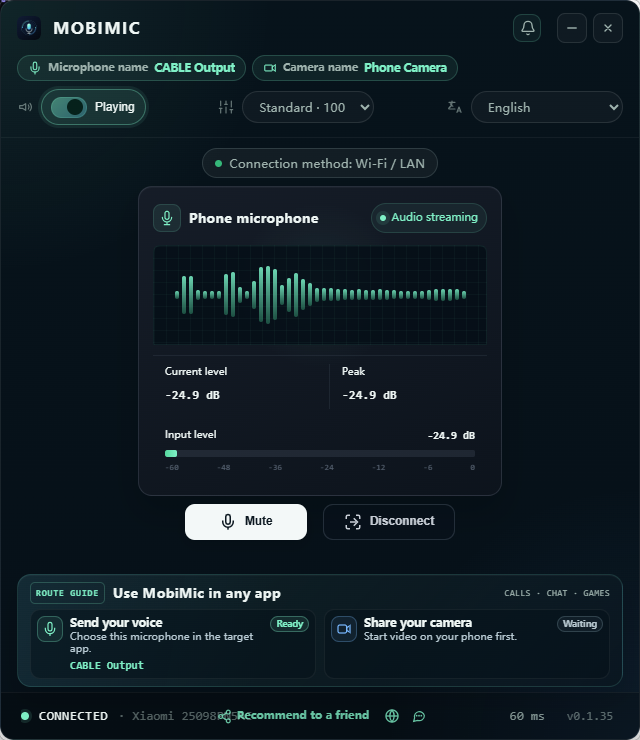
- The desktop Phone Microphone monitor shows a waveform and input level.
- On Windows, the desktop setup guide tells you to select
CABLE Outputin your meeting app.
If the level does not change, make sure the phone is not muted and MobiMic has microphone permission.
Select the input device in your meeting or recording app
Section titled “Select the input device in your meeting or recording app”Open the app’s microphone, audio-input, or recording-device settings and select:
CABLE OutputThe device list may not contain the name “MobiMic.” Select CABLE Output when you see it. Do not select CABLE Input: MobiMic writes audio to that device internally; it is not the microphone input that meeting apps should use.
If the app has its own microphone setting, confirm the selection there even if Windows already uses CABLE Output as its default recording device.
Everyday audio controls
Section titled “Everyday audio controls”- Select Mute on the phone or desktop to pause sending phone audio to the computer.
- Select Unmute to resume audio.
- Local playback on the desktop is for monitoring; it does not change the microphone selected by meeting apps.
- Input gain adjusts the incoming level before local playback and virtual output. Increase it gradually from Standard.
- Select Disconnect when finished. The phone stops the audio session and returns to its ready state.