Wi-Fi / LAN Connection
Wi-Fi / LAN Connection
Section titled “Wi-Fi / LAN Connection”Try automatic discovery first. If it fails, use a QR code or pairing code.
Automatic discovery
Section titled “Automatic discovery”- Open MobiMic on a Windows computer.
- Open MobiMic on an Android phone.
- Select Search Devices on the phone.
- Find the computer in Nearby computers and select Connect.
- Wait until both apps show Connected.
Android search results separate MobiMic computers discovered on the LAN from Bluetooth devices already paired with the phone.
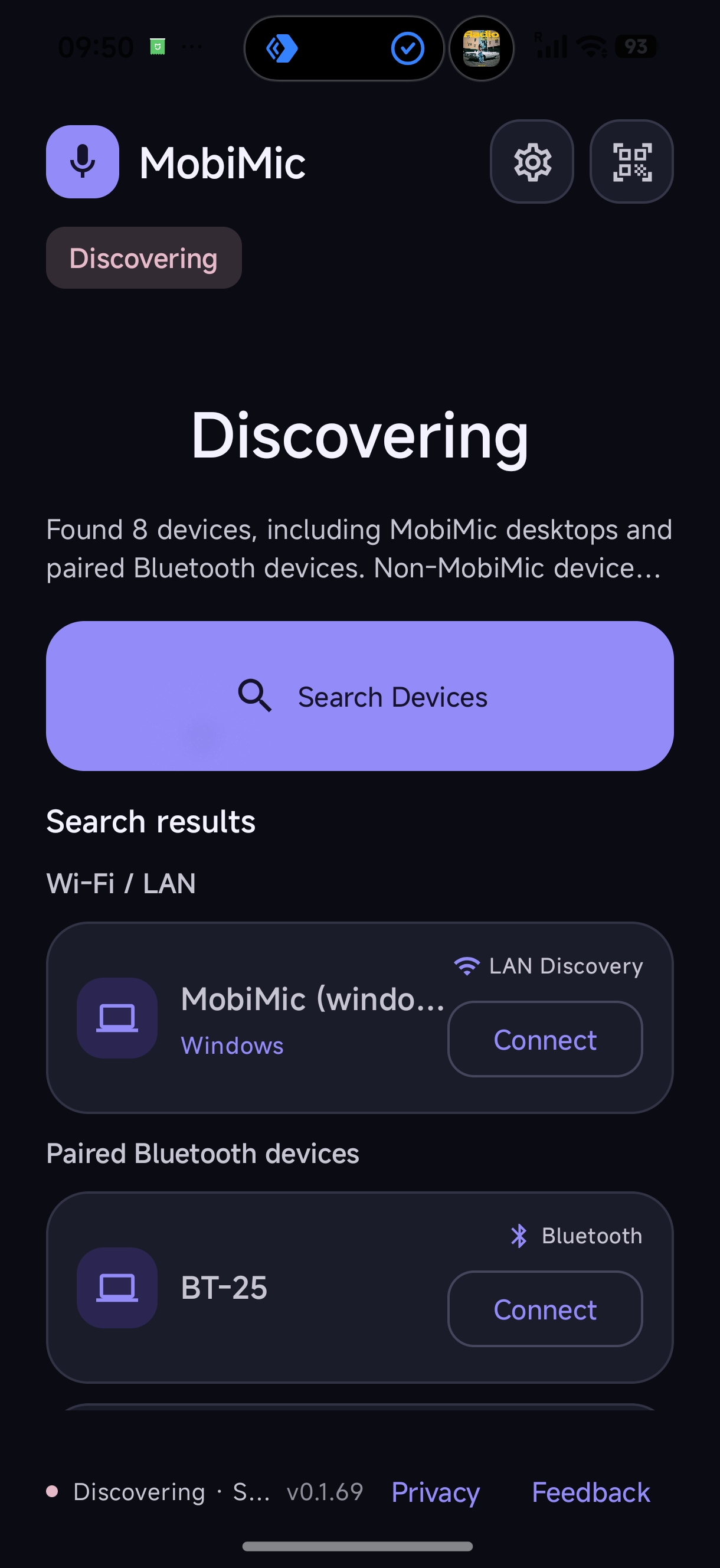
After connecting, the phone prepares the microphone session. Speak into the phone and check for movement in the desktop waveform or audio meter.
Scan to connect
Section titled “Scan to connect”- Find the QR code on the desktop app’s disconnected screen.
- On the phone, select Scan or the QR-code icon.
- Allow camera access and point the scanner at the desktop QR code.
- After scanning, the phone uses the LAN connection information in the QR code to connect.
- Wait until both apps show Connected.
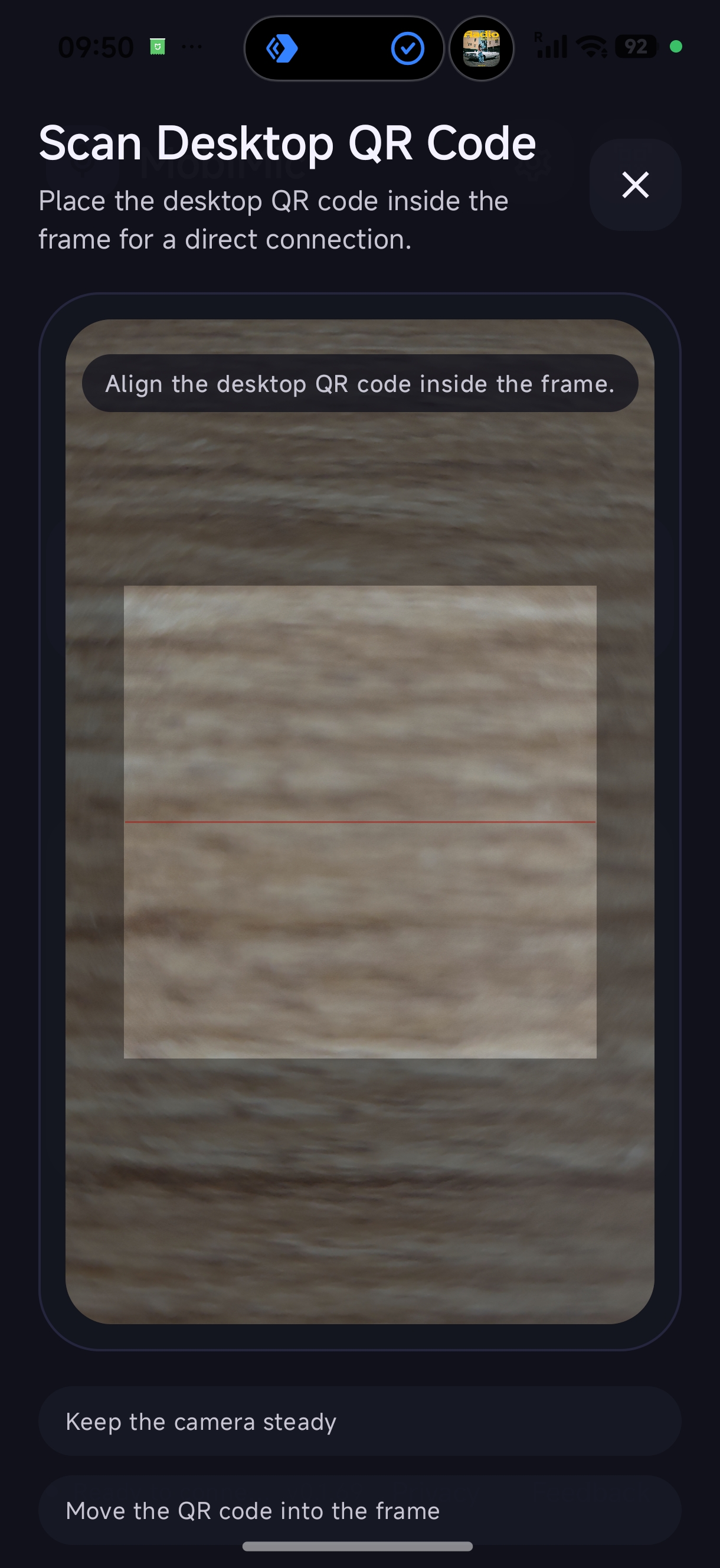
Only scan the code currently shown by the desktop app. If the desktop network changes, close the old scanner page and scan the current code again.
Connect with a pairing code
Section titled “Connect with a pairing code”- Find the six-digit pairing code on the desktop app’s disconnected screen.
- On the phone, select Use Pairing Code or Enter Pairing Code.
- Enter the six-digit code shown on the desktop.
- Select Connect and wait until both apps show Connected.
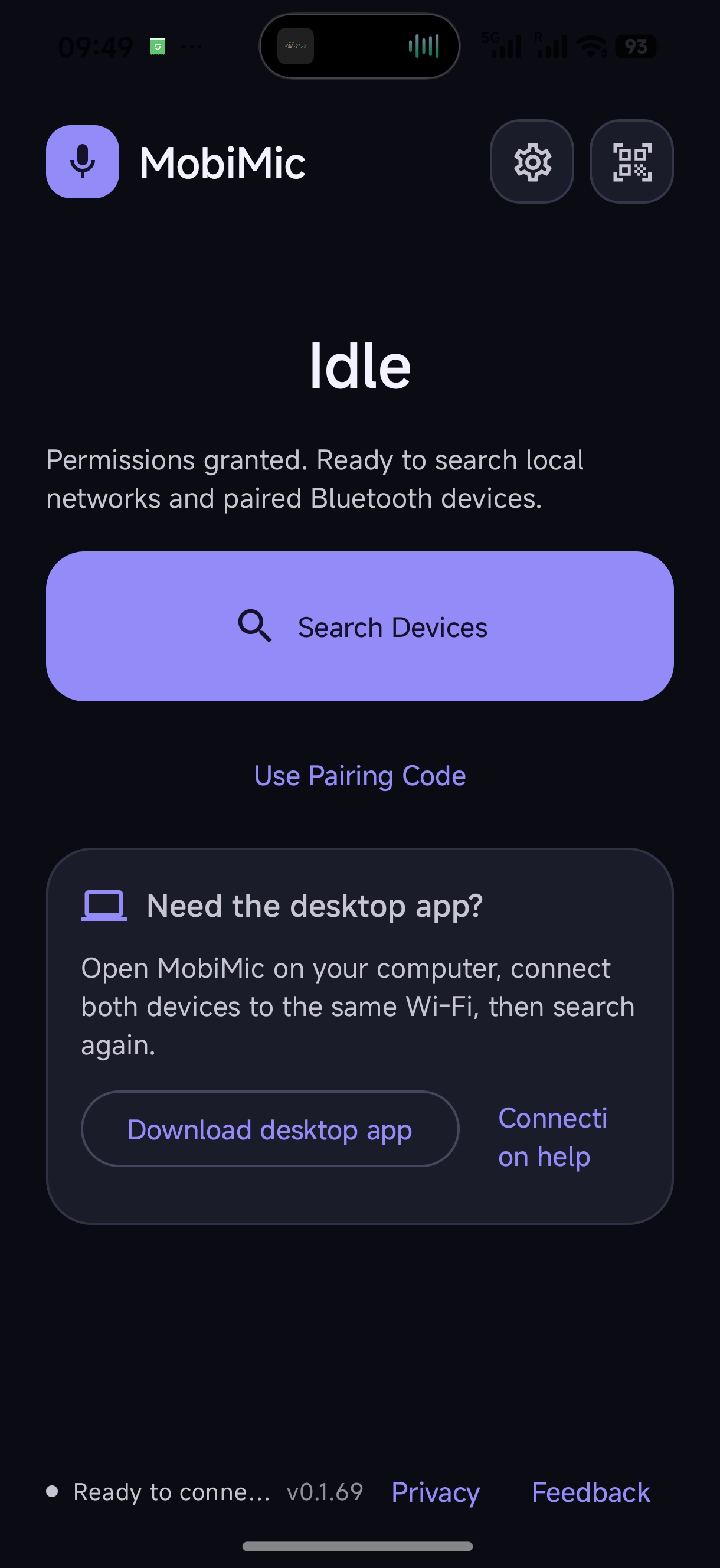
The pairing code belongs to the current desktop connection. If it stops working after a restart or network change, use the new code shown by the desktop app.
For system requirements, see Supported Platforms and Requirements.