Connect for the First Time
Connect for the First Time
Section titled “Connect for the First Time”We recommend automatic discovery. If it does not find your computer, try scanning its QR code or entering its pairing code. For other connection methods, see USB networking or Bluetooth.
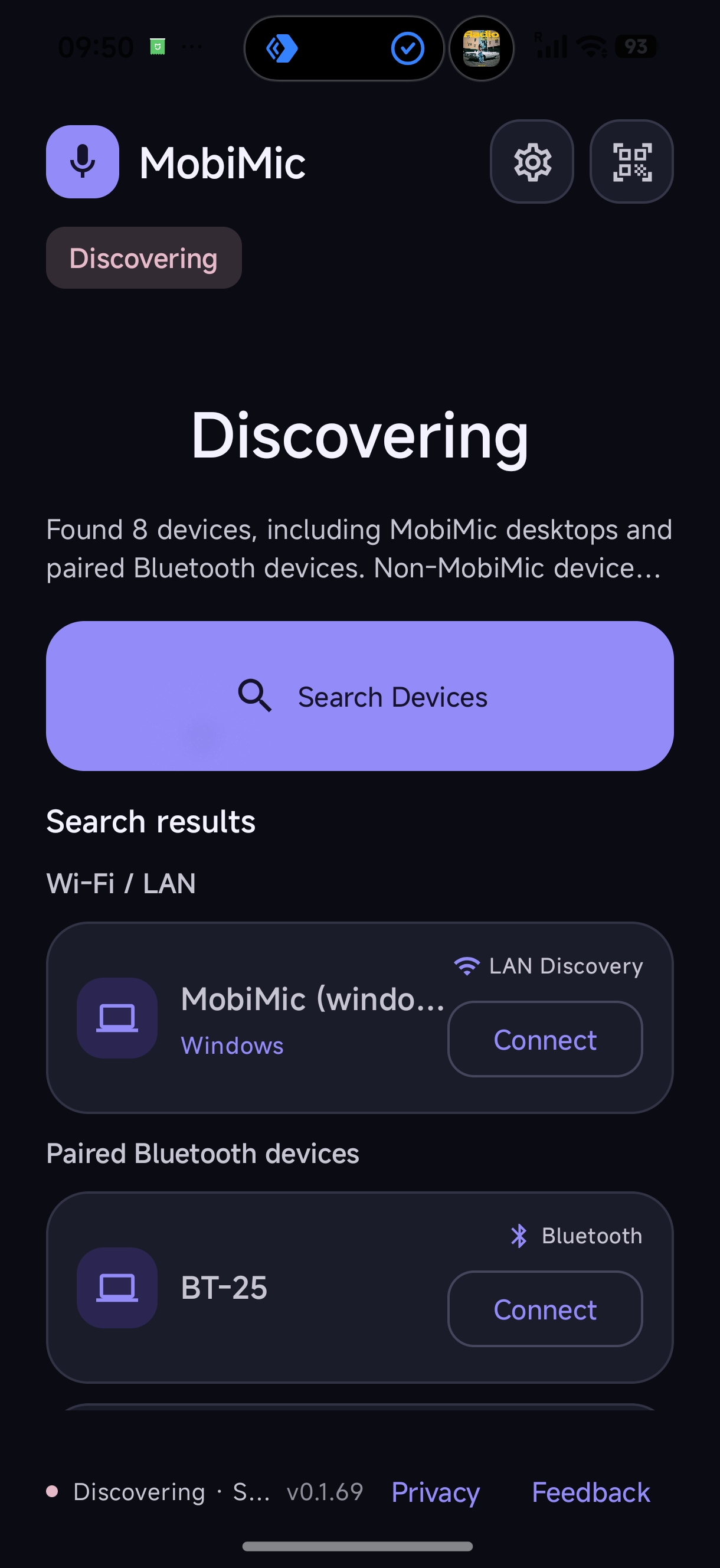
On Android, select Search Devices to see nearby MobiMic computers and Bluetooth devices already paired with the phone. Find your computer and select Connect.
After connecting
Section titled “After connecting”Both the phone and desktop app should show Connected. Speak into the phone and check that the desktop audio meter changes. For camera setup, first check the requirements in Use your phone as a camera.
Quick verification checklist
Section titled “Quick verification checklist”After installation, check the following:
- The desktop app reports that its connection service is available and has no unresolved VB-CABLE warning.
- The phone has microphone permission.
- Both apps have established a session using your chosen connection method and show Connected.
- The desktop audio meter changes when you speak into the phone.
- The meeting app uses
CABLE Outputas its microphone. - If you use video, video is enabled on the phone and the desktop shows a preview and Virtual camera ready.
- The meeting app uses Phone Camera as its video device.
AI voice cloning is not currently available as a regular user feature. Related hidden desktop controls are a development preview; they do not affect the phone’s original audio, virtual microphone, or virtual camera.
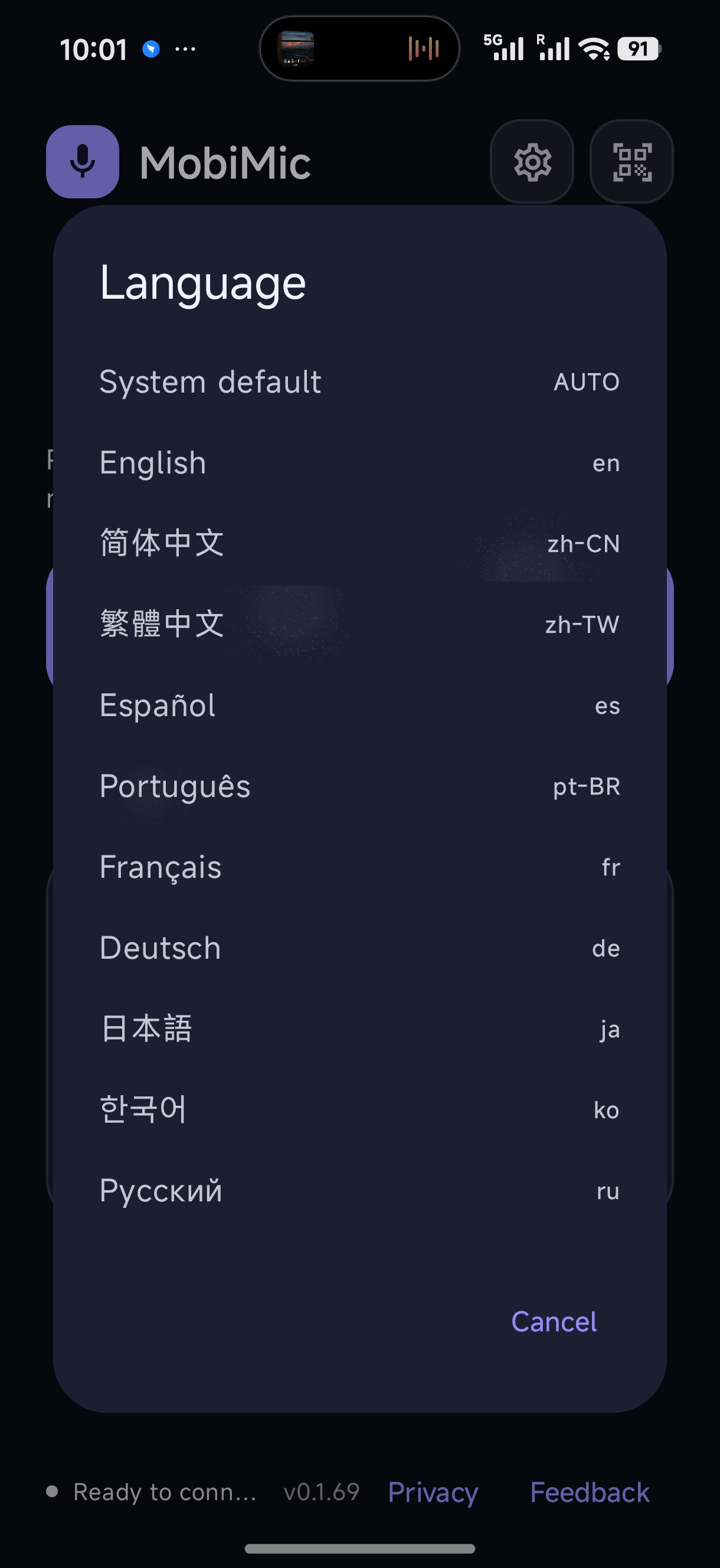
Change the phone app language
Section titled “Change the phone app language”Select the language icon in the upper-right corner of the phone’s main screen, then choose System default or a language. The interface changes immediately.