Use Your Phone as a Camera
Use Your Phone as a Camera
Section titled “Use Your Phone as a Camera”Phone video capture is currently provided by the Android app. The desktop preview and Windows virtual camera receive the phone’s video and provide it to meeting apps. The iOS camera is used to scan connection QR codes; it does not capture phone video.
The phone camera uses a separate video channel. Turning video on or off does not affect an existing audio session.
- Connect the phone and computer.
- On Android, select Start Video.
- Allow MobiMic to use the camera the first time.
- Confirm the desktop shows a live preview from Phone Camera.
- If the desktop says the virtual camera is not enabled, select Enable Phone Camera and complete the Windows permission prompt.
- Wait until the desktop says Virtual camera ready.
- In your meeting or streaming app’s video settings, select:
Phone Camera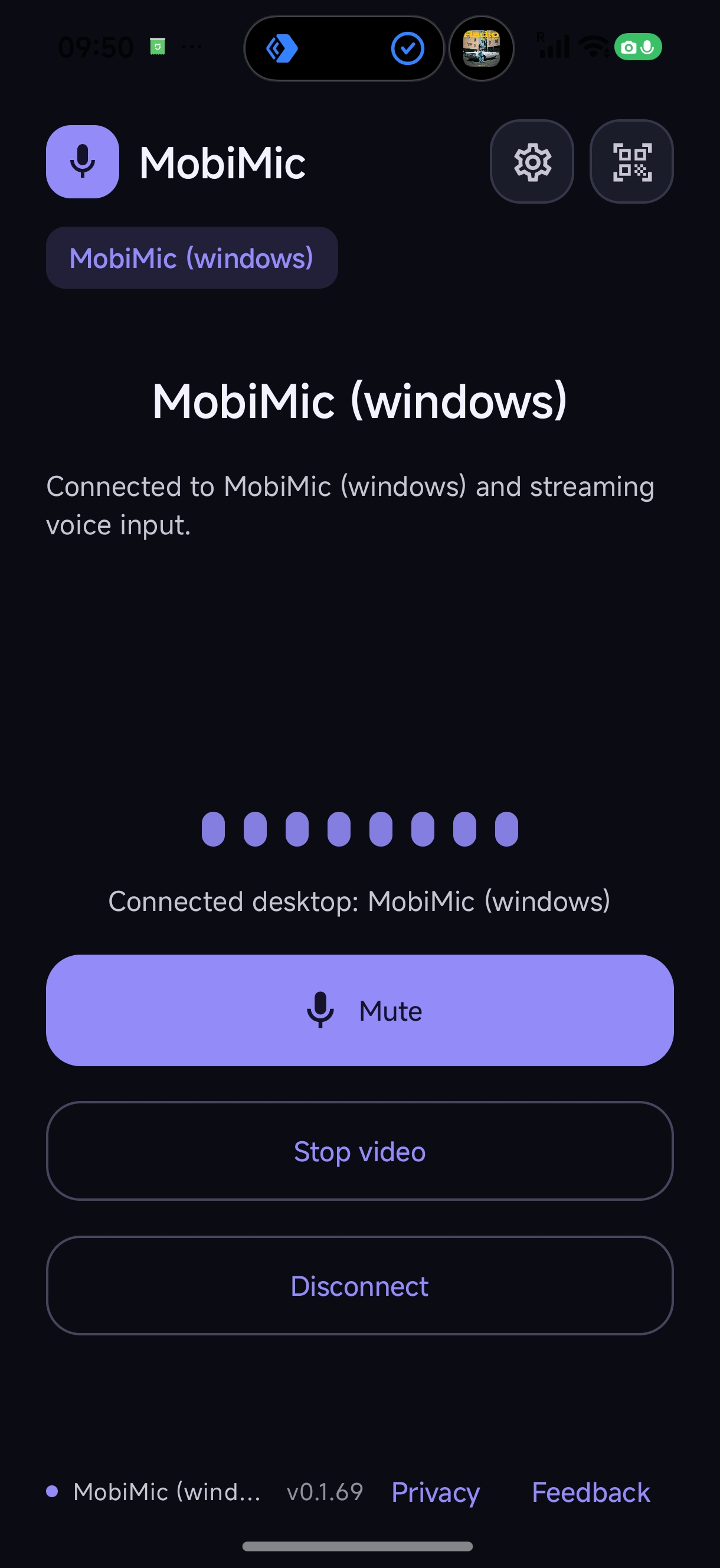
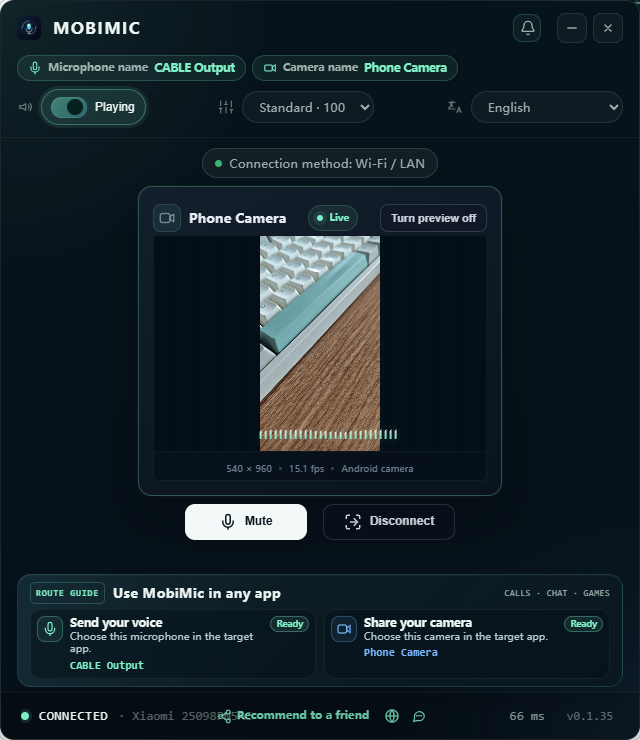
Use the desktop preview switch if you only need a preview. Other Windows apps can use the phone video only after the virtual camera is ready.
Select Stop Video on the phone to end video. This does not disconnect the microphone session; phone audio can continue.